EflyerMarketing Help Center
Tutorials &
How-To Guides
Start with the tutorial that matches your order, then use the written guides whenever you need a quick answer.
Start Here
Watch the tutorial that matches your order.
Already have a completed flyer? Use the first tutorial. Need us to create the flyer? Use the second one. Each walkthrough shows the actual Order Form and where to click.
Before You Begin
Have the basics ready.
You do not need every answer before you begin, but having these items ready makes the order process move faster.
Using Your Own Flyer?
A completed flyer is the fastest path to placing your order.
- A clear final JPG or PDF flyer
- Your email subject line
- The Email Areas you want to reach
- Your preferred send date, if you have one
Need a Flyer Created?
Give us the details and materials you want us to use.
- Property or business information
- Photos and logo, when applicable
- Website, virtual tour, contact, or call-to-action links
- The Email Areas you want to reach
Written Backup Guide
Order Form Guide
Prefer to scan the process instead? Follow the tabs from left to right. Each tab handles one part of your order.
Tell us who the order is for.
Choose whether the campaign is for yourself or an agent, then provide the best contact information for questions about the order.
Choose what you are promoting.
Select the option that best matches your listing, property, or real estate-related service.
Add your details and choose your flyer option.
Add the address, subject line, links, listing details, and any important instructions. This is also where you upload your flyer or request flyer creation.
Choose where you want it sent.
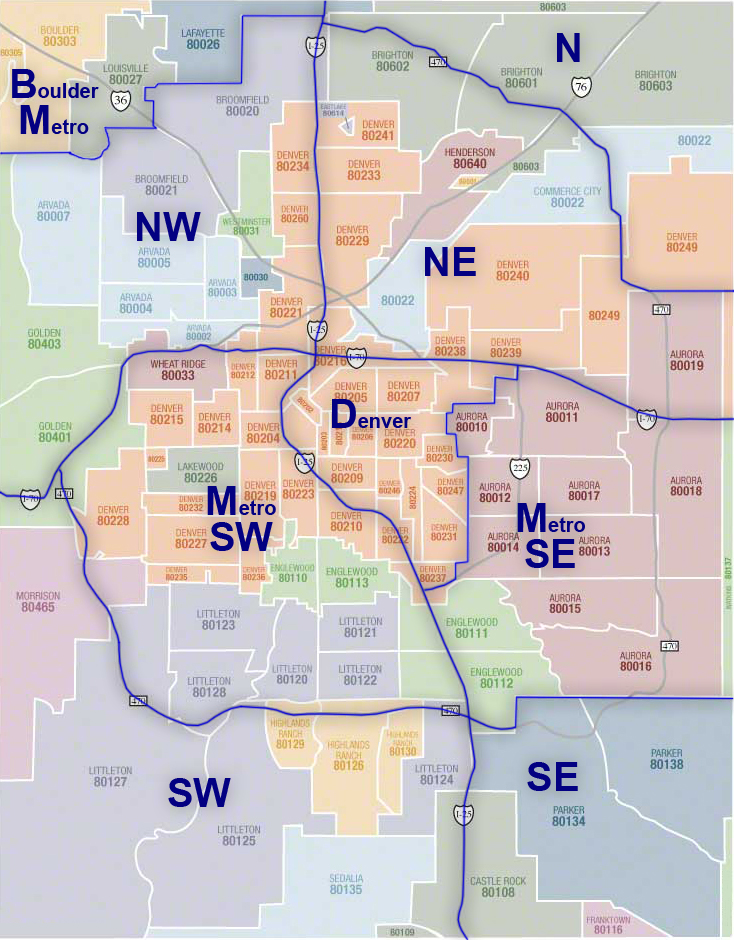
Select the counties, metro areas, or coverage groups that fit your campaign. Recipient counts and pricing update as you choose.
Choose timing and additional options.
Request your preferred send date, add Multi-Wave send dates, and select any optional visibility services for your campaign.
Review, pay, and submit.
Confirm your Email Areas, options, and total. Then complete secure checkout to submit your campaign for review and scheduling.
Helpful tip: Use Save Draft anytime you need to finish later. You can also use Back to revise an earlier step before checkout.
More Help
Helpful guides for planning your next send.
Quick paths to the answers customers often need before launching or repeating a campaign.
How to Choose the Right Email Areas
Review available coverage, recipient counts, market groupings, and pricing before you begin your campaign.
View Email Areas Flyer PreparationHow to Prepare Your Flyer and Files
Learn which file types work best and what to provide when you want EflyerMarketing to create the flyer.
Read Flyer FAQs Multi-Wave SchedulingAdd Additional Send Dates
Add additional send dates while placing a new campaign. Eligible additional sends receive a discounted rate.
Launch Campaign ReOrdersReOrder a Completed Campaign
Start from an eligible completed campaign when you want to send the same flyer again with a fresh subject line.
Open ReOrdersStill need a hand?
Contact EflyerMarketing for help choosing your flyer option, Email Areas, timing, or the right way to set up your order.